
From Contacts > All Members you can export a spreadsheet of your members' memberships, showing their plan, status, payment method, and key dates. Filter the list first if you only want a subset, or leave it as is to export everyone.
⚠️ Note: Owner and Business logins can export membership data. Manager, Staff and Trainer logins don't have the Exports option. Exports also isn't available on a phone, so use a computer or tablet.
Go to Contacts in the left-hand menu and select the All Members tab.
Filter the list to the members you want (optional — see Finding and filtering your members).
Select Exports.
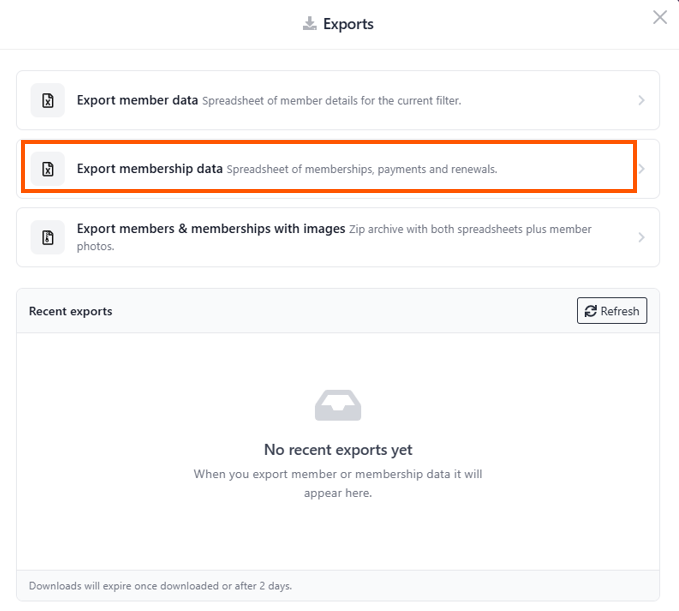
Choose Export membership data.
Select OK to confirm.
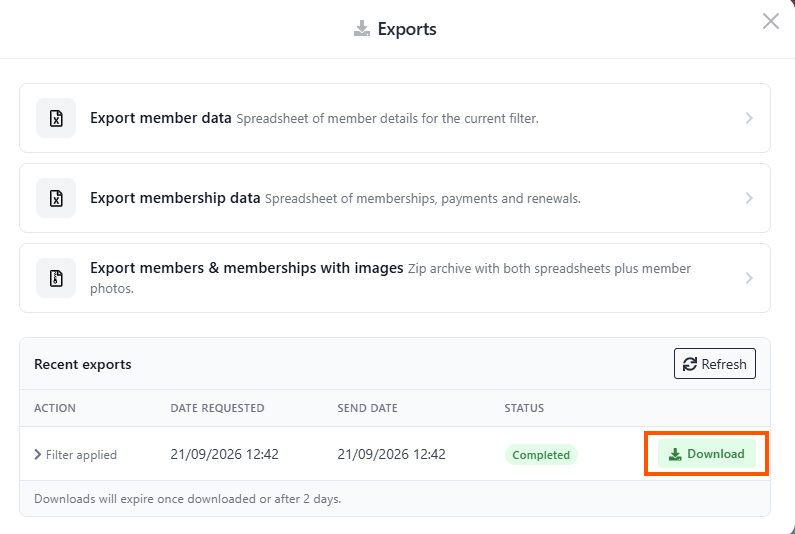
Allow around 10 minutes for the file to generate, then open Exports > Recent exports and select Download.
The file downloads as a CSV file, which opens in Excel or Google Sheets. It has one row per person on each membership, with these columns: Membership No, Member Id, First Name, Last Name, Lead Member, Lead Member Id, Status, Plan Name, Payment Method, Start Date, End Date, Next Fee and Next Payment. On a shared membership each person has their own row, and Lead Member says Yes for the person who pays. Cancelled memberships aren't included. Downloads expire once downloaded or after 2 days, so grab it promptly once it is ready.
Have more questions about exporting your data?
If you have a question that is not covered here, ask to talk to a member of the Customer Success team.