
Referrals reward members who bring new people to your club. Once you set it up, rewards are applied automatically when a referred member joins, and removed again if that member later leaves, so there is no manual tracking to keep on top of.
⚠️ Note: Referrals are part of the Complete package. If your club is on Core, see Upgrading from Core to Complete, or click the chat button to talk to our Customer Success team.
Why use Referrals?
Grow through word of mouth: reward your existing members for bringing friends and family in.
Reward both sides: you can give a reward to the referring member, the new member, or both.
Hands-off: rewards apply automatically when a referral joins, and are removed automatically if the referred member leaves.
Step 1: Set up your referral rewards
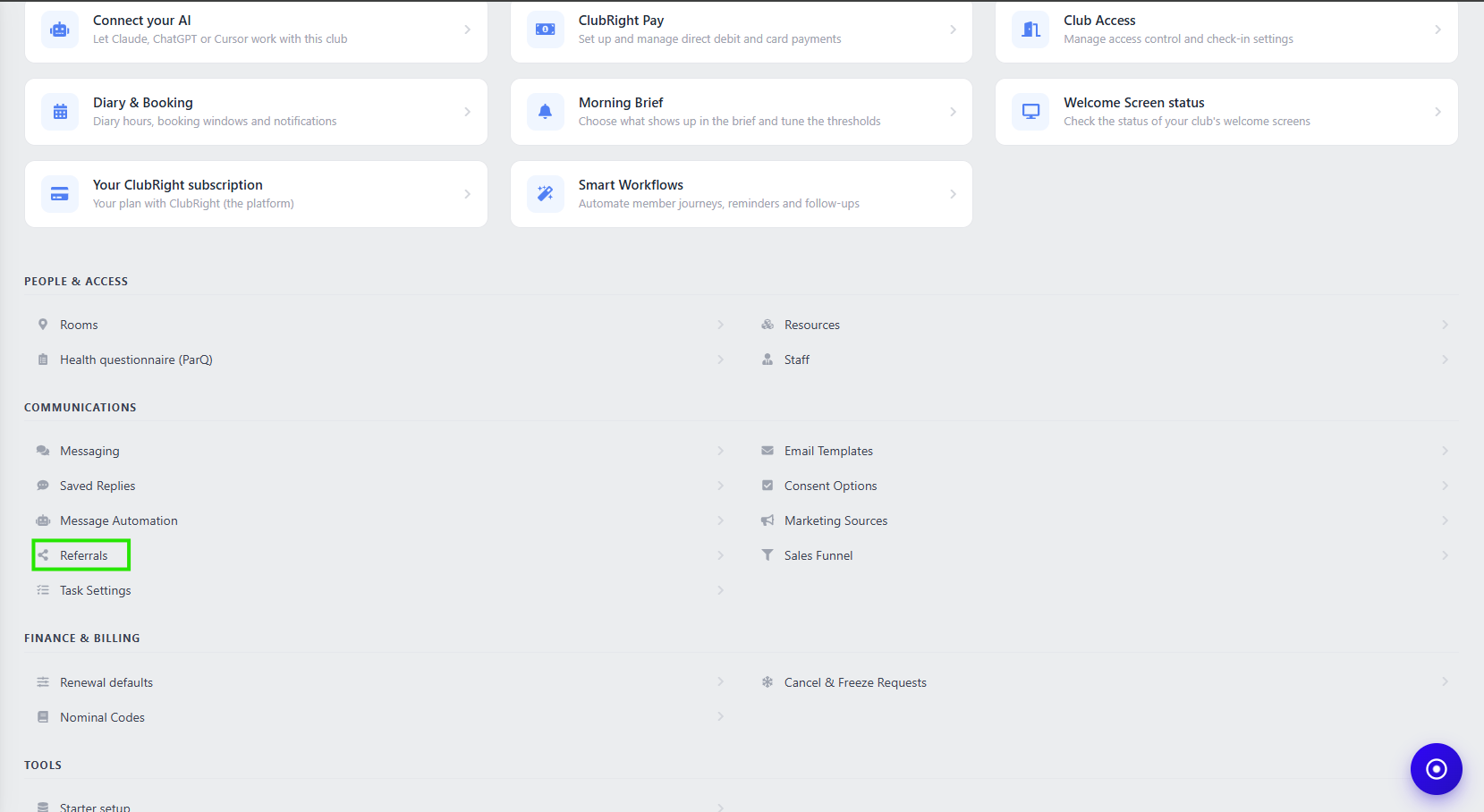
Go to Settings, then Communications, then Referrals. The left side of this page, under What do referrers get?, is where you decide the reward.
Choose a Reward type from the dropdown:
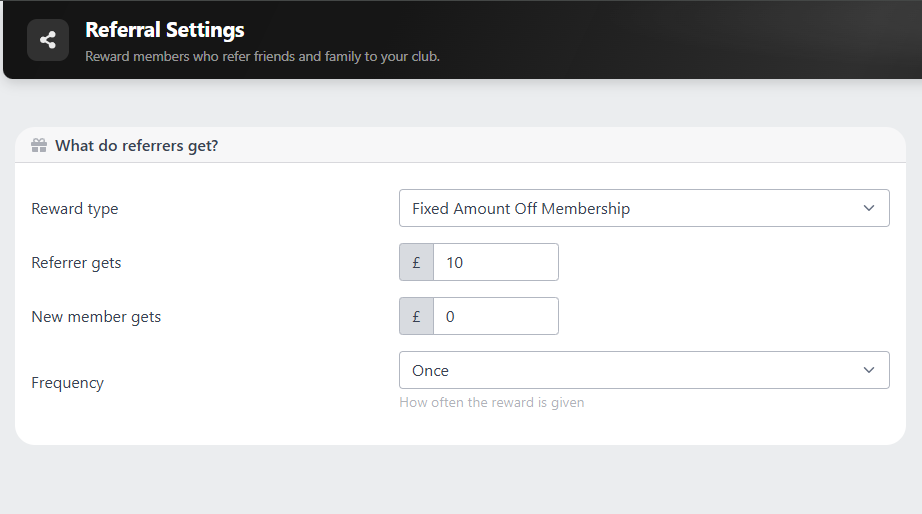
Fixed Amount Off Membership: a set amount off the membership fee, for example £2 off.
Percentage Off Membership: a percentage off the plan, for example 10% off.
ePoints Added: credit added to the member's account that they can spend in your online shop.
In Referrer gets, enter the reward the referring member receives.
In New member gets, enter the reward for the person who was referred. This is optional, leave it at zero if only the referrer should be rewarded.
Choose the Frequency, which controls how often the reward is given. For example, a reward given Once applies a single time, while Monthly applies it on each monthly payment. Each person referred gets their own reward, so Once means once for every person a member refers, not once per referrer.
Click Save Changes at the top of the page to save your changes. Until you do, the page shows Unsaved changes next to the button, and it warns you if you try to leave without saving.
When you change a reward, a reminder appears asking you to check the reward values. It isn't an error, and it doesn't mean anything has been saved.
⚠️ Note: Only one reward type can be active at a time. You cannot offer a discount and ePoints together.
Step 2: Choose which plans qualify
On the right side of the same page, under Which plans qualify for referrals?, you choose the membership plans the reward comes off. Referral rewards apply to monthly membership plans only. It's the plan of the member getting the reward that has to qualify: the referrer needs to be on a ticked monthly plan to get their reward, and the new member needs to be on one to get theirs.
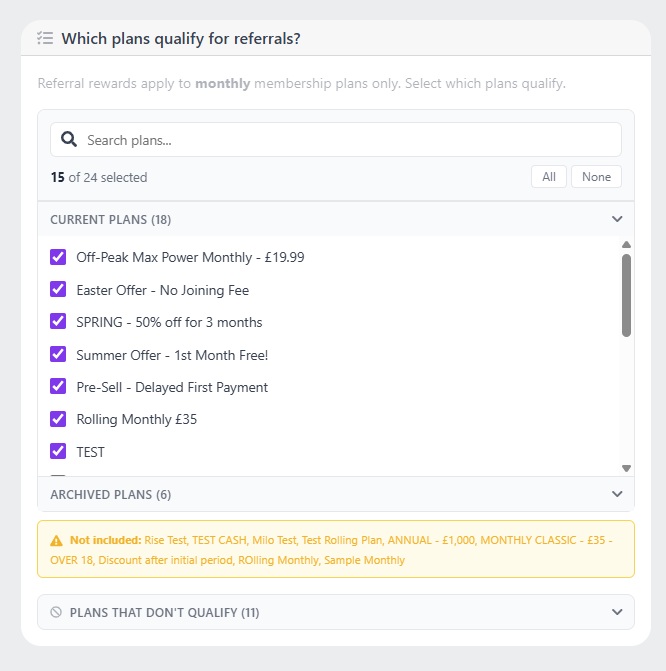
Use the Search plans box to find a plan, or browse the Current Plans and Archived Plans groups.
Tick each plan that should qualify. Use All or None to select or clear them quickly. A counter shows how many of your plans are selected.
Any plans you have not selected are listed under a Not included note and in the Plans that don't qualify group, so you can see at a glance which plans the reward will not apply to.
Click Save Changes at the top of the page to save the plans you've ticked.
Step 3: Where do I record who referred a member?
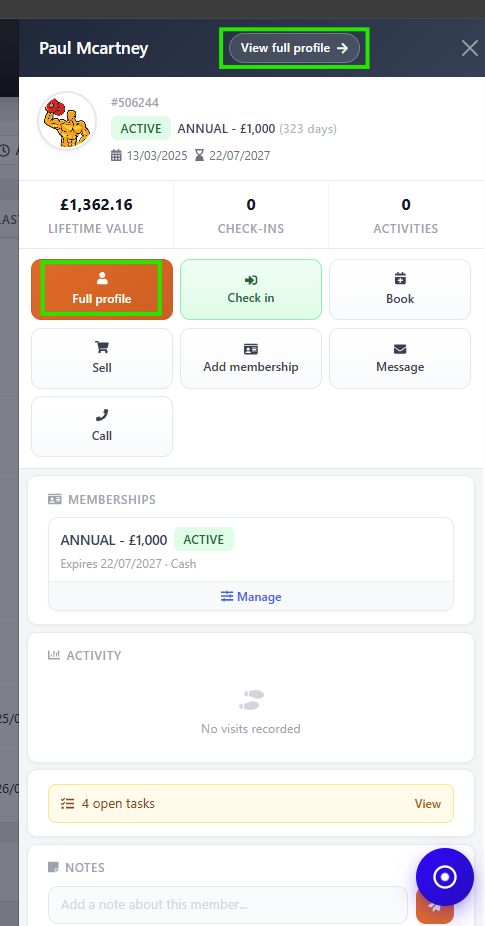
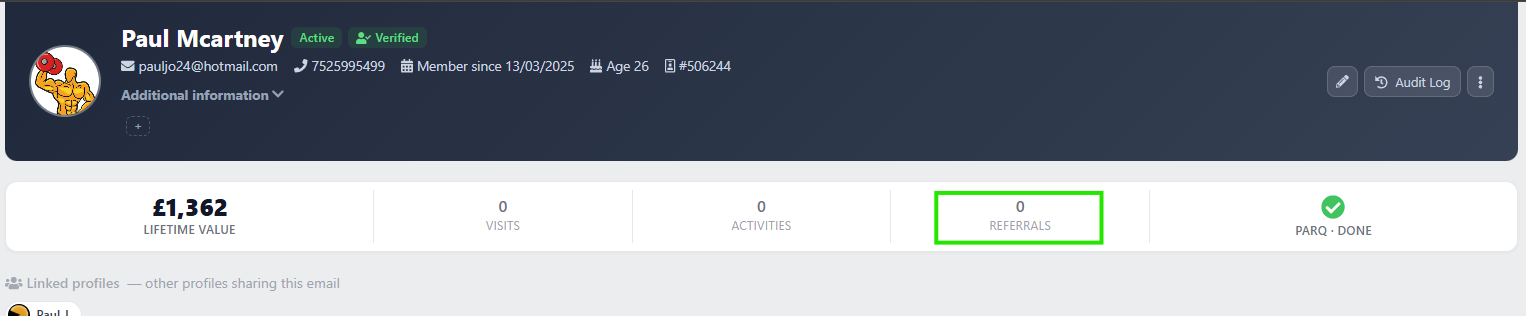
On the new member's profile, click Referrals in the row of figures near the top, next to Activities. The Referrals panel opens, with Referred by at the top. On a phone it opens full screen.
Open the new member's full profile and click Referrals to open the Referrals panel.
In the Referred by field, start typing the name of the member who referred them and select that member from the search results.
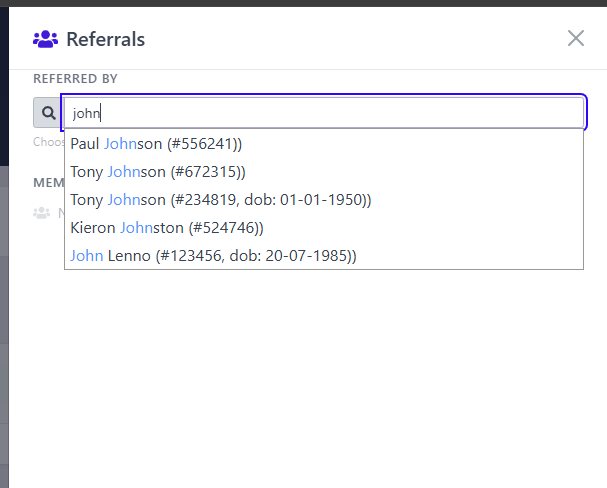
The referral saves as soon as you select the member. There's no save button. The reward is then applied automatically based on the setup from steps 1 and 2. The same Referrals panel also shows Members referred, the people this member has brought in, so you have a record on the profile itself.
⚠️ Note: Record the referral after the new member's membership has been added. If you record it first and the new member then joins on a plan that doesn't qualify, such as a yearly plan, the referrer doesn't get a reward. To fix it, click Remove under Referred by, click Yes, remove it, then select the referrer again.
How does ClubRight know who referred a new member, and how is the reward paid?
ClubRight saves the referrer as their member record, not just their name, so the reward always goes to the right person, even if you have 50 members called Adam. Once the referral is saved, the reward goes into the payment schedule straight away. The full reward comes off a collection. It is not pro-rated.
Picking the right referrer when members share the same name
When a new member joins through your refer a friend scheme, record who referred them on their profile:
Open the new member's full profile and select Referrals.
In the Referred by field, start typing the name of the member who referred them.
Check the membership number shown against each result, and the date of birth where one is recorded, then select the right member.
Because the referral is saved against that member's record, it doesn't matter how many members share the same name. The reward goes to the member you selected.
If a new member joins online, they can type the name of the person who referred them in the Referred By box on their profile. This is free text, so it isn't linked to a member record and no reward is applied yet. ClubRight adds a task to the new member's profile saying who they named, so a member of staff can select the right member in the Referrals panel and apply the reward.
When and how the reward is applied
From the next payment that can still change: the reward goes into the payment schedule as soon as the referral is saved, and comes off the next payment that hasn't already been sent for collection. A Direct Debit collection that has already been requested from the bank is taken in full, and the reward comes off a later payment. You don't need to add a discount by hand.
Each month, not as a lump sum: a Monthly reward comes off each monthly payment. It's never paid as one lump sum.
In full, not pro-rated: the whole reward comes off a collection. It isn't split or worked out pro rata. For example, with a one-off reward of £15 for the referrer and £10 for the new member, £15 comes off a collection for the referrer and £10 comes off a collection for the new member.
Membership payments only: the discount comes off the membership payment, not a joining fee.
⚠️ Note: The referring member only receives their reward if their own membership is on a monthly plan that qualifies for referrals. A referrer on a weekly plan won't receive a reward. The new member's plan doesn't need to qualify for the referrer to get their reward.
You can see the reward on each member's payment schedule, under Referrals in the membership details.
Which payment does a referral reward come off?
A one-off reward comes off the first payment that hasn't been taken yet, from the day the referral is saved. For Direct Debit, that's the first payment the bank hasn't already locked in.
New member's first payment: if their part-month first payment was already taken, the reward goes on the next payment. If the referral was saved before they signed up, the part-month payment itself gets the discount.
Fixed rewards: a fixed reward skips any payment smaller than itself and goes on the first one that's at least as big. If none is big enough, it goes on the next payment, which comes down to £0.00.
Percentage rewards: these always go on the next payment, whatever its size.
Plans that don't get money off: money rewards only work on plans that charge monthly or every few months, such as quarterly. Weekly, 4-weekly and yearly plans get no money off, and a one-off reward on those plans is lost without any warning. On a quarterly plan, a monthly reward comes off each quarterly payment as the flat amount, not three times it.
GoCardless: a reward that would take a payment to £0.00 can't be added, and the member's log says so.
⚠️ Note: A reward is only added if the new member already has a membership when you save the referral. If you saved it before they had one, remove the referrer and add them again.
Does a member need to do anything in the app to get their referral discount?
No. Members don't claim a referral reward themselves, and there's no code to enter in the app or member area. Once a member of staff has recorded the referral in the Referrals panel on the new member's profile, the reward is applied automatically. It goes to the referrer, and to the new member as well if you've set a reward for them in New member gets.
With Fixed Amount Off Membership or Percentage Off Membership, the discount comes off their membership payment. With ePoints Added, the points are added to their account to spend in your online shop.
If a member asks how to use their discount, you can tell them: "You don't need to do anything. Once we've recorded your referral, the discount comes off your membership payment automatically."
The only part a new member can do themselves is say who referred them. When they join online, they can type the person's name in the Referred By box on their profile. No reward is applied until a member of staff selects the right member in the Referrals panel (see above).
How can I test my referral offer?
Test with a monthly membership plan. Referral rewards apply to monthly membership plans only, and you'll see "Referral rewards apply to monthly membership plans only." on Settings > Communications > Referrals.
Add a monthly membership plan that qualifies for referrals (see Step 2) to a test member in club.
Open the test member's full profile and find the Referrals panel.
In the Referred by field, start typing the name of the member who referred them and select that member from the search results.
You don't need a card to test. When you add the membership, under Payment you can choose:
Take payment now: card, cash or cheque at the till.
Decide later: the membership shows as overdue until it's set up.
For the full steps, see Manually adding a membership in club.
How rewards are applied and removed
After a referral is recorded, the referring member, and the new member if you configured a reward for them, receive their rewards automatically. For example, if both are set to receive a fixed amount off, that amount comes off each of their active memberships.
If the referred member later cancels or leaves, the referring member's reward is removed automatically and their membership returns to its normal price. This means you do not need to track when referred members leave.
If one member refers several people, do they get a reward for each?
Yes. The referrer gets a reward for every person they refer. Each referral adds its own reward to the referrer's membership, so they add up. For example, with £5 off Monthly, a member who has referred three people gets £15 off each monthly payment.
Rewards come off one after the other, and can't take a payment below zero. One-off rewards come off first, then monthly ones. Fixed amounts add up: two £10 rewards take £20 off. Percentages are taken one after the other, so two 50% rewards on £80 leave £20, not £0. A payment never goes below £0.00. For example, £30 off a £25.99 payment brings it to £0.00.
Each reward is separate. If one of the people they referred leaves, or the referral is removed, only that reward stops. The others carry on.
To see them, open the referrer's membership, click Manage & view details and scroll to Referrals. There's one line for each person they've referred.
💡 Tip: On Settings > Communications > Referrals, keep the reward below the monthly price of your qualifying plans. A bigger reward brings the member's payment to £0.00 for as long as it applies, and a member who refers several people can still have their payment brought down to £0.00.
Does a referral count if the friend pays for a year upfront?
Yes. As long as the referrer is on a qualifying monthly plan, they get their reward even if the friend joins on a plan paid in full for the year. Only the plan of the person getting the reward has to qualify.
Add the friend's yearly membership first.
Open the friend's full profile and click Referrals.
In Referred by, select the referrer.
The referrer's reward then comes off their monthly payments, for example £5 off each month. It isn't paid as a lump sum. The friend doesn't get a New member gets reward, because a yearly plan doesn't qualify for referrals.
Seeing your referrals
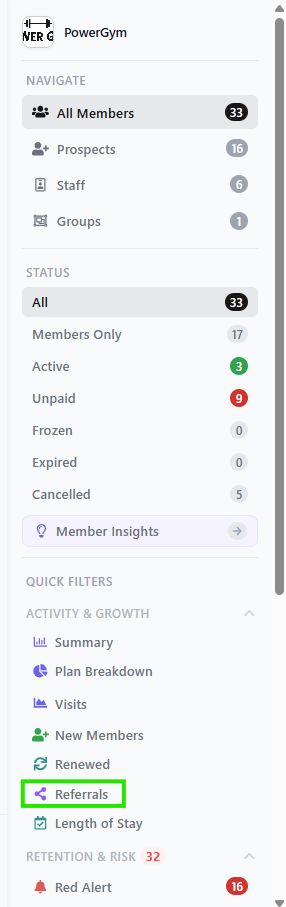
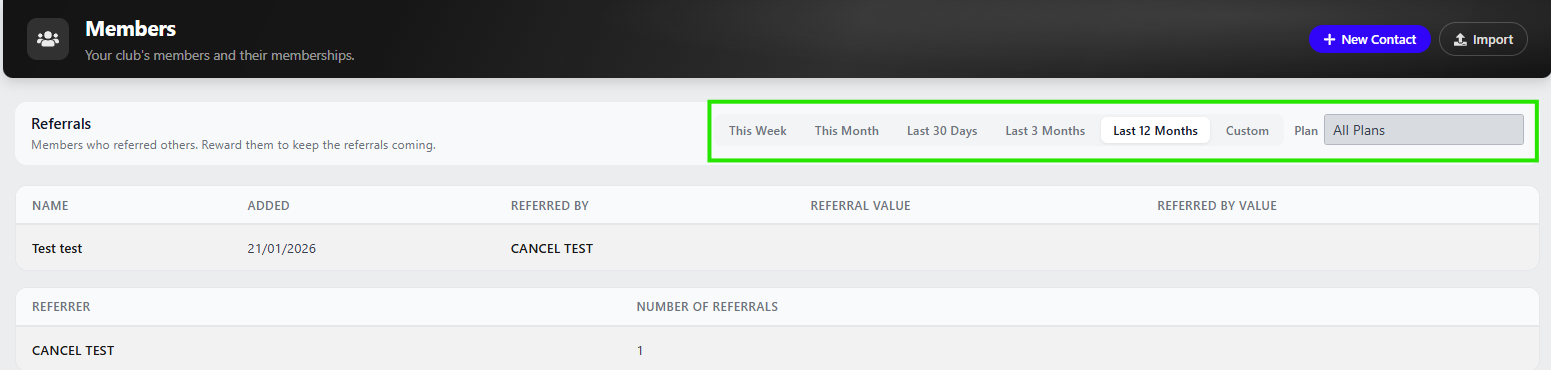
To see referral activity across your club, go to Contacts, open the Members dashboard, and select Referrals from the left rail under Activity & Growth. This shows the members who have referred others, so you can see who is driving sign-ups and reward them to keep referrals coming.
Use the period filters (This Week, This Month, Next 30 Days, Last 3 Months, Last 12 Months, or Custom) and the Plan filter to focus the view.
💡 Tip: Encourage your members to get involved. A simple campaign asking each member to recommend just one friend can grow your club quickly.
How do I stop notifications when a member refers a friend?
Go to Settings > Task Settings.
Next to Referral received ("A member refers a friend through the app"), choose Disabled.
Click Save.
Your other notifications and tasks aren't affected.
Have more questions about referrals? Click the chat button at the bottom of your screen to speak to our team.