
The desktop QR and barcode scanner lets members check in at your front desk. When a member scans their code, ClubRight registers their arrival and checks their membership is active and up to date. This article covers what you need, how to set the scanner up, and how to fix common problems.
⚠️ Important: The scanner supplied by ClubRight is for front desk check-in only, where a member registers attendance face to face. It must not be connected to access control hardware that powers a door or turnstile. For door or turnstile access, speak to one of our approved access control suppliers.
What you need before you start
💡 Hardware requirements: The scanner only works with a Windows 10 or higher PC. It does not work with Apple devices or tablets. A Windows laptop is not recommended, as laptops can drop connection and overheat when left on permanently. For reliability, use a Windows desktop PC, ideally wired directly to your router rather than on wifi.
Before installing, download and install both versions of Microsoft Visual C++ 2015, one at a time, so the Welcome Screen loads correctly once installed. You can download them from Microsoft's download page.
The scanner connects through the Welcome Screen application, so you need that installed first. If you have not done this yet, follow the Welcome Screen setup guide.
Can I use my own barcode scanner?
Yes. The Welcome Screen doesn't look for a particular make of scanner. It works with any scanner that plugs into the PC by USB and types what it reads, the way a keyboard does. The scanner doesn't need to press Enter after a scan: the Welcome Screen waits for a short pause and then checks the code.
Detect Barcode / QR Scanner in the Welcome Screen settings (press F12) listens for the next scan and uses whichever device sent it, so it works the same for any make.
We've only tested the scanner we supply, so we can't confirm how a particular model will behave.
Choosing your check-in method
Decide how members will check in before setting up the scanner. Go to Settings > How your club runs > Club Access and choose an option under How do members check in?
QR Code (Rotating, secure): a secure code in the member app that refreshes regularly.
QR Code (Fixed, printable): a fixed code that can be printed.
Barcode (Traditional scanner): for members using a key tag or membership card with a printed barcode.
Remember to click Save Changes.
💡 Note: The check-in method is a club-wide setting, not a per-member choice. Different access control systems work with specific check-in types, so if you use access control, choose the option that matches your hardware. If you are unsure which one your system needs, check with your access control provider before changing it.
Can I stop a member's QR code from expiring?
Yes. Only the rotating QR code expires. With QR Code (Rotating, secure), each code lasts 120 seconds and changes after every successful check-in. The members' area refreshes the code every 90 seconds, or when the member taps it.
To give members a code that doesn't change, go to Settings > How your club runs > Club Access and choose QR Code (Fixed, printable) under How do members check in?, then click Save Changes. Fobs and membership numbers never expire.
A fixed code is easier for members to share. Before you switch, read Preventing access abuse and credential sharing to weigh up the trade-off.
How do I set up my barcode or QR scanner on the Welcome Screen?
Plug the scanner into your Windows PC, press F12 on the Welcome Screen to open its settings, detect the scanner by scanning any code, then save and restart the Welcome Screen. The button names depend on which version of the Welcome Screen you have, so check that first.
Which version of the Welcome Screen do I have?
On the PC, press F1 to take the Welcome Screen out of full screen. The title bar reads ClubRight Welcome Screen followed by the version number, starting 3.0 or 2.1.
Version 3.0
Plug the scanner into a USB port on your Windows PC.
Open the Welcome Screen and press F12. The Terminal Settings window opens.
Click Set Up Barcode or QR Scanner. The Barcode / QR Scanner page opens.
Click Detect Barcode / QR Scanner, then scan any barcode or QR code with the scanner. The Current Device line fills in.
Click Save. Back on Terminal Settings, the scanner shows as Detected.
Close the Welcome Screen (press F11) and open it again. Scans won't register on the main screen until you do.
Version 2.1
Plug the scanner into a USB port on your Windows PC.
Open the Welcome Screen and press F12 to open the settings.
Click Set next to Reader ID, then scan any barcode or QR code with the scanner.
Click Save.
Close the Welcome Screen and open it again. Scans won't register on the main screen until you do.
The scanner is now linked. You can leave the Welcome Screen running, and it will check members in even when it is not the window in focus.
✅ Tip: Most clubs keep the Welcome Screen open and facing members as they walk in, so it greets them and shows club information. The Welcome Screen needs to be open each day for check-in to work, and you need to be logged in to ClubRight.
Turning the keypad numbers or sound on or off
If the Welcome Screen shows a number keypad and you do not want it, you can turn it off. Members can also be allowed to check in by typing their membership number instead of scanning. Both are controlled under Settings > How your club runs > Club Access, in the Check-in options section:
Keypad entry: turn this off to hide the number keypad, or on to let members type their membership number.
Mute welcome screen: turn this on to switch off the sound the Welcome Screen makes when members scan in.
For how members use the keypad, and how Paxton keypad PINs work, see How do members use their PIN to get in?
Why do I only hear one beep when a member scans in?
The first beep is the scanner itself, telling you it has read the code. Any sound after that comes from the Welcome Screen, through your PC's own speakers. It plays one sound when the member is let in, and a different sound when they're refused, for example because their membership has expired, they're overdue or their card isn't registered. If you only hear the first beep, the Welcome Screen's sound isn't reaching you. The scanner doesn't connect to your website. It works through the Welcome Screen application on your front desk PC.
Check these in order:
Go to Settings > How your club runs > Club Access and make sure Mute welcome screen is switched off.
Check the PC's volume is turned up, and that it has speakers or headphones connected.
Check the Welcome Screen is open and you're logged in to ClubRight. If it isn't running, the scan isn't checked at all.
You don't need the sound to know whether a membership is up to date. The Welcome Screen shows it on screen: a greeting when the member is let in, or a red message with the reason when they're refused. See Why was a member refused entry on the welcome screen?
Troubleshooting
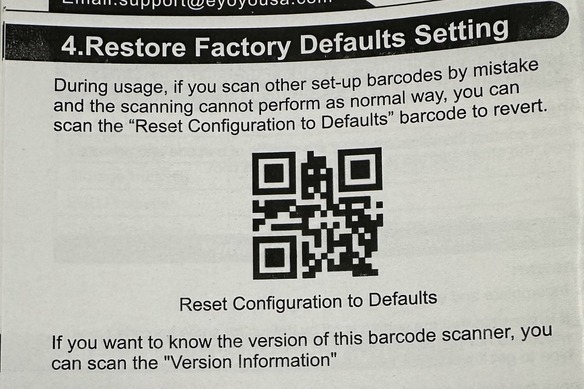
A factory reset often resolves scanner problems. Your scanner's manual contains a factory reset barcode that returns the unit to its default settings. If you no longer have the manual, you can use the image below.
Scan that first, then set the scanner up again using the steps above. If the reset does not help, work through the checks below.
Factory Reset QR image - scan with your reader plugged in, point the scanner directly at this image, and you should hear a beep:
Reinstall Visual C++. On older machines, install both versions of Visual C++ 2015 to rule out missing dependencies.
Check your internet. The scanner needs an internet connection to work.
Check the lights. Make sure the scanner is plugged in and the blue light is on at the top. When you hold a barcode up to it, the white light should come on.
Check the Welcome Screen is running. It must be open each day and you must be logged in to ClubRight for check-in to work.
Restart the Welcome Screen after setting up the scanner. If the scanner beeps but nobody is checked in, close the Welcome Screen and open it again.
Try a powered USB hub. The current scanners need a powered USB connection. Most recent PCs are fine, but older computers may not supply enough power, so the scanner appears to turn on but does not work properly. Long extension cables can also drop the voltage too low. A powered USB hub usually solves this.
If F12 does not open the options box, it is usually a keyboard shortcut conflict. Open the Windows on-screen keyboard and press F12 from there instead.
If Windows shows an error for the scanner in Device Manager, try a different USB port, then a different PC. If it doesn't work on a second PC either, the scanner is probably faulty. Scanners bought from ClubRight have a 12-month manufacturer's warranty, so contact our Customer Success team. See ClubRight Hardware Catalogue.
If you are still stuck, contact the Customer Success team using the chat button in your application.