
Access control lets you manage entry to your club through a physical barrier, such as a turnstile or a magnetic door lock. ClubRight connects to the barrier and decides who gets in: members whose payments are up to date, or who have paid for a booked activity, are let through, and anyone else is refused. This article explains how the integration works, the hardware ClubRight supports, and what you need to run it.
Why use access control
Access control puts your membership rules on the door. It is worth setting up if you want to:
Let in only paid-up members. Entry is granted based on each member's live membership and payment status, so overdue or lapsed members are refused automatically.
Run unmanned or extended hours. Because the barrier checks members itself, you can offer early, late, or 24-hour access without staff on the front desk.
Control entry by your own rules. Opening hours, club capacity, and visit limits all feed into who is allowed in and when.
How it works
ClubRight talks to your access control hardware through the Welcome Screen, a small application that runs on a Windows PC at your club. The Welcome Screen is the connector between your ClubRight account and the barrier: it keeps the access hardware updated with each member's current membership and payment status, so the barrier knows whether to open.
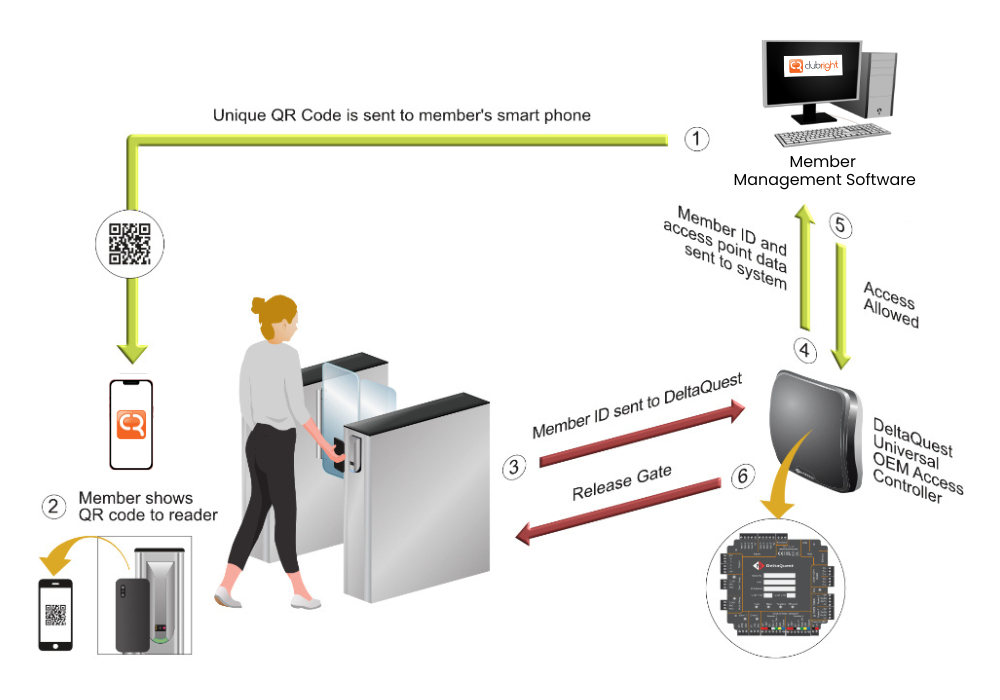
When a member arrives:
The member presents their credential (a QR code, barcode, PIN, or card) at the reader.
The reader passes it to the Welcome Screen, which checks the member's current status in ClubRight.
If the member is active, paid up, and permitted to enter at that time, the barrier opens.
If not, entry is refused and the screen shows the reason.
For what each refusal message means, see Troubleshooting member access: club, classes and app.
The hardware ClubRight supports
ClubRight integrates with two access control systems. Both connect through the Welcome Screen and achieve the same result, but they work in different ways:
Nortech: an industry-standard access control controller, connected to the Welcome Screen. See Setting up Nortech access control.
Paxton: the Paxton Net2 system, also connected to the Welcome Screen. See Setting up Paxton access control.
Your approved access control installer will advise which hardware suits your premises and will carry out the installation.
💡 How quickly member changes reach the door: Nortech and most setups sync directly with the ClubRight database, so a change to a member's status applies straight away. Paxton works slightly differently: ClubRight updates the Paxton database on a repeating schedule of around 5 minutes, so a member who has just paid may need a few minutes before they can get in.
Can one Welcome Screen run a door and a turnstile?
No. Each Welcome Screen can only run one type of barrier, and each one needs its own dedicated PC. If your club has both a door and a turnstile, you need two Welcome Screens on two separate PCs, one for each.
To check your Welcome Screen is online, look at the Welcome screen card on your Home page, which shows its status and when it was last seen. To check each terminal separately, go to Settings > Your Club > Welcome Screen status. This lists each terminal with when it was last seen, its terminal ID, and whether it is Online or Offline. If you do not have Settings in your menu, for example on a Manager login, you can open the page directly at app.clubright.co.uk/Club/Terminals.
Before setting this up, contact the Customer Success team using the chat button so we can confirm what your account needs. Your access control installer can then set up the second Welcome Screen for you.
Can I limit a membership type to certain doors or turnstiles?
No, not by door. Access is set per site only. A plan's Club Access setting (No club access, Allows club access or Allows group club access) is its only access setting. Nothing ties a plan to a particular door or turnstile within a site.
What about door settings in Paxton or Nortech?
Paxton: if you set individual doors for a member in Net2, they will be reset. Every member ClubRight sends to Paxton gets the same access level, which is chosen once on the Welcome Screen PC. Each member is rewritten at least once a day. Your installer can change which doors are in that access level, but it applies to every member.
Nortech: ClubRight only sends "open" commands to Nortech. Whether Nortech's own system can restrict doors is a question for Nortech or your installer.
Can I limit a membership to one site?
Yes. A plan set to one site is refused at your other sites.
For a member to get in at another site, both of these must be in place:
That site has Multi-site access switched on in its Club Access settings.
The member's plan is set to Allows group club access.
If the plan is only set to Allows club access, the member sees "You don't have a membership that will give you access to this club." For more, see Multi-site access: letting members use more than one site.
Can my door hours be different from my opening hours?
Not within ClubRight. There is no separate door schedule. The hours you set in Settings > Your Club > Club Access, under When are you open?, control when members can check in through the Welcome Screen. On that screen, these are described as "Members can only check in during these times".
The opening hours shown on your website are a separate setting. See Setting your contact details and opening hours.
If you need your doors to follow a different schedule from your access hours, speak to your access control installer.
How members gain entry
Depending on your setup, members can use any of the following to gain entry:
QR code: generated in the member app.
Barcode: on a membership card or key tag.
PIN number: by default, the first 6 digits of the member's membership number.
Card or fob: a physical credential assigned to the member.
Can members use NFC to get in?
Yes. NFC (MiFare) cards and fobs work with ClubRight. A contactless card reader plugs into your Welcome Screen PC, and the Welcome Screen reads the number on the card's chip. Check with your access control installer or our Customer Success team which reader to use.
Cards work alongside the QR code, so members can have two or more ways in. Whatever check-in method your club has chosen, each scan is checked against the member's QR code, card number and membership number. The check-in method only changes what members see in the app and Member Area.
How do I give a member a card or fob?
Open the member's profile.
Go to Membership Card Number and click Setup.
Scan the card at your club's Welcome Screen. The number fills in for you.
Click Save.
⚠️ Note: Always scan the card rather than typing the number printed on it. The printed number may not be the number the chip sends.
If the card is already assigned to another member, you'll see "Please use a card or band that hasn't already been assigned to another member." Use a different card or fob.
Can members tap their phone to get in?
No. There is no Apple Wallet or Google Wallet pass, and the app doesn't use the phone's NFC. "Tap to scan in" in the Member Area means tapping the screen to show the QR code.
Do cards work with Nortech and Paxton?
Nortech: the reader sends the card number to the Welcome Screen, and ClubRight decides whether to open the gate. Adding the card in Membership Card Number is all you need to do.
Paxton: the card still goes in Membership Card Number. It is only sent to Paxton if the Paxton setting PIN Type on the Welcome Screen PC is set to CardNoAsToken. The default is MembershipNoAsPin.
⚠️ Note: With Paxton, always add cards in ClubRight. A fob added straight into Paxton's own software is removed by ClubRight's daily update.
What you need to run it
💡 PC requirements: Your access control must run on a dedicated Windows PC, used only for access control. It will not run on an Apple device, and a desktop is strongly preferred over a laptop. The PC needs at least 8GB of RAM and should be hardwired to your internet router for stability. ClubRight keeps a local cache in case of a short internet outage.
Two settings on the PC are important:
Turn off automatic updates, so a Windows update does not interrupt access control.
Turn off sleep mode, as this will shut down your access control when the PC sleeps.
The Welcome Screen needs to be open and online at all times for the barrier to work. You can download it from Settings > Your Club > Apps & Widgets, and there is more detail in Setting up and troubleshooting the Welcome Screen.
Getting access control installed
We recommend using a ClubRight approved access control supplier. They carry out the site survey, advise on hardware, install it, and connect it to ClubRight. The Welcome Screen setup itself is quick, typically a few minutes, once the hardware is in place.
For help choosing an installer, see Choosing an access control supplier, or contact the Customer Success team using the chat button in your application.