
If you have more than one ClubRight profile on the same email address, at other clubs or at the same club, you can switch between them without logging out.
Switch clubs from the menu
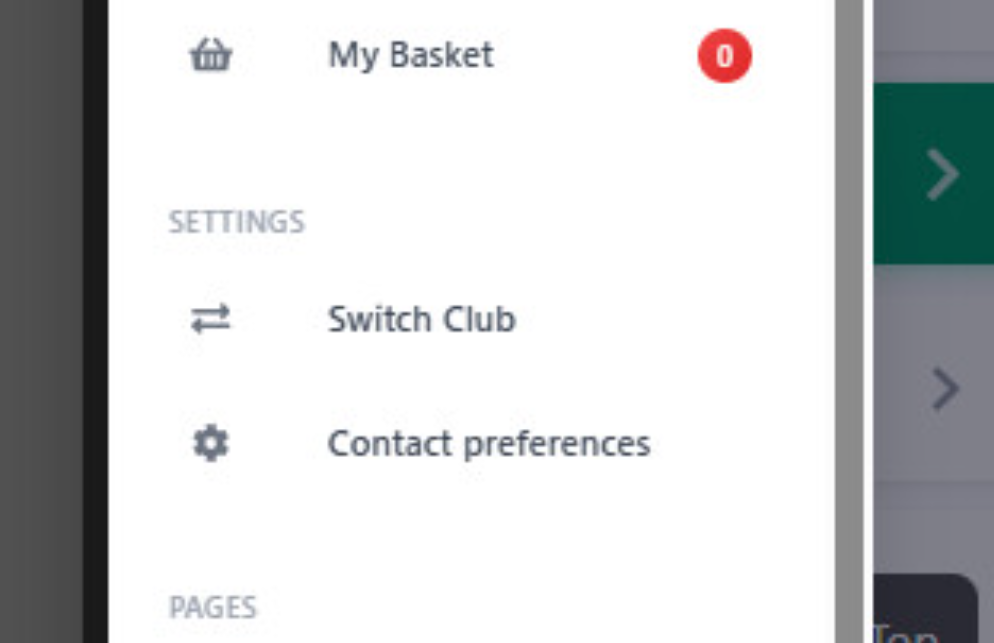
Open the app and tap the Menu icon (the three lines) in the bottom left corner.
Under Settings, tap Switch Club.
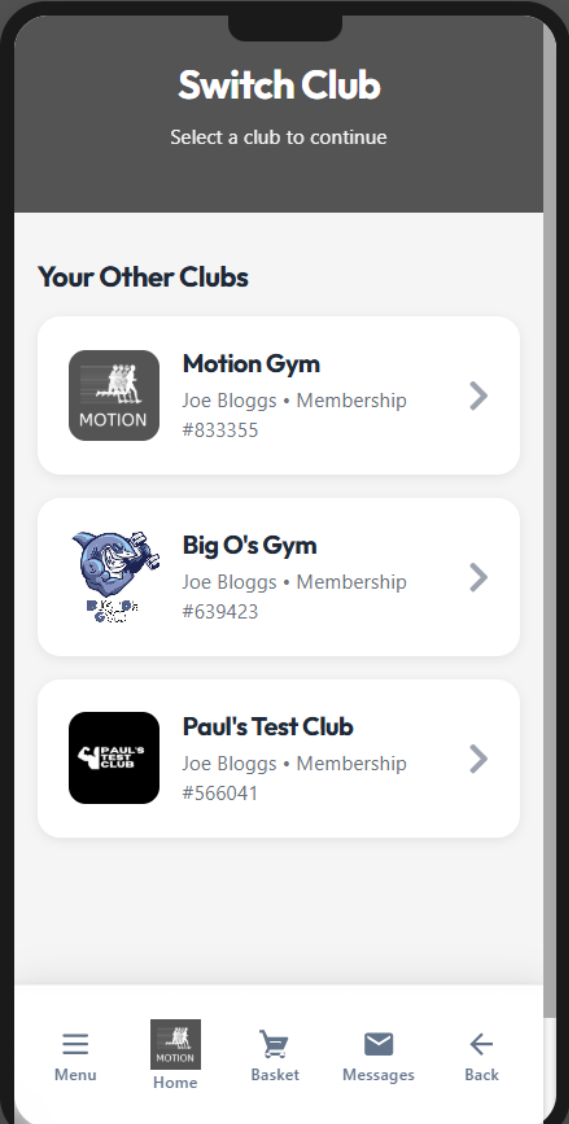
You will see a list of all the clubs you belong to under Your Clubs.
Tap the club you want to switch to.
The app loads that club's member area, showing your membership details and options for that location.
Switch clubs from the home screen
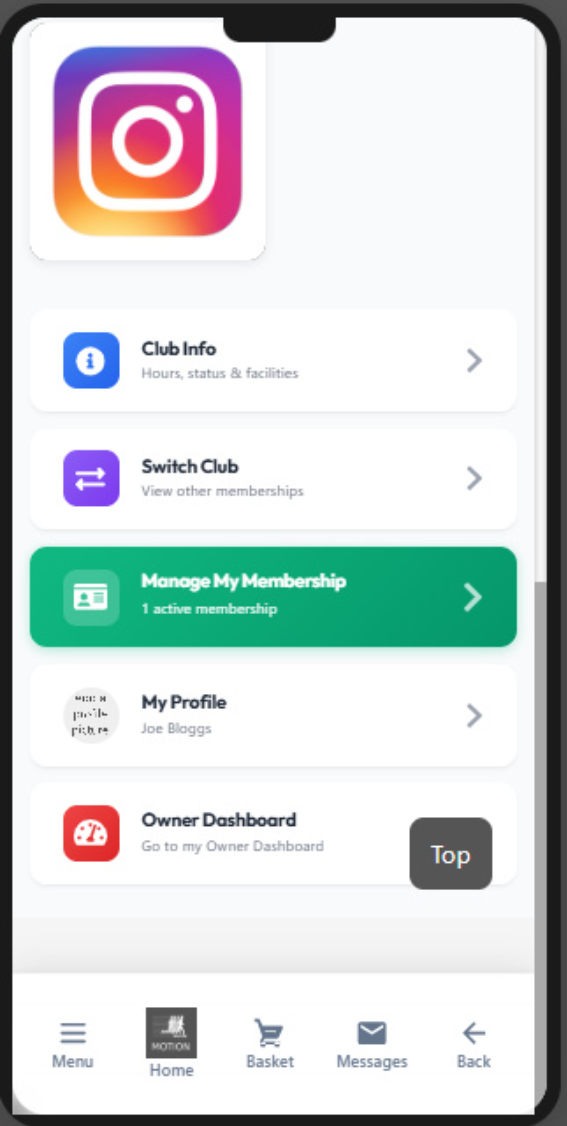
From your member area home screen, scroll down to find Switch Club in the menu tiles.
Tap Switch Club to view your other memberships.
Tap the club you want to switch to.
Can a member switch between two profiles at the same club?
Yes. When two profiles at a club use the same email address, Switch Club lists both under Your Clubs, each with the person's name and membership number. The one they're on is marked You're here. They tap the other profile. The first time, ClubRight emails a 6-digit code to that profile's email address and shows a masked version of it. Once they enter the code, that profile opens with its membership and scan-in code. Nothing is needed from your team.
Good to know
- You need to be registered with the same email address at each club for them to appear in your Switch Club list. If a membership is not showing, check the email address it is registered under, or contact that club.
Still having trouble switching clubs? Click the chat button at the bottom of your screen to speak to our team.